Invoice Templates & Numbering
Three settings screens decide how a printed document looks and how it is numbered: Invoice Templates (which fields and columns appear, their labels, the branding), Invoice Print Copies (how many GST copies print), and Voucher Numbering (the number series each document type draws from). This page walks through all three by customising a GST tax invoice end to end.
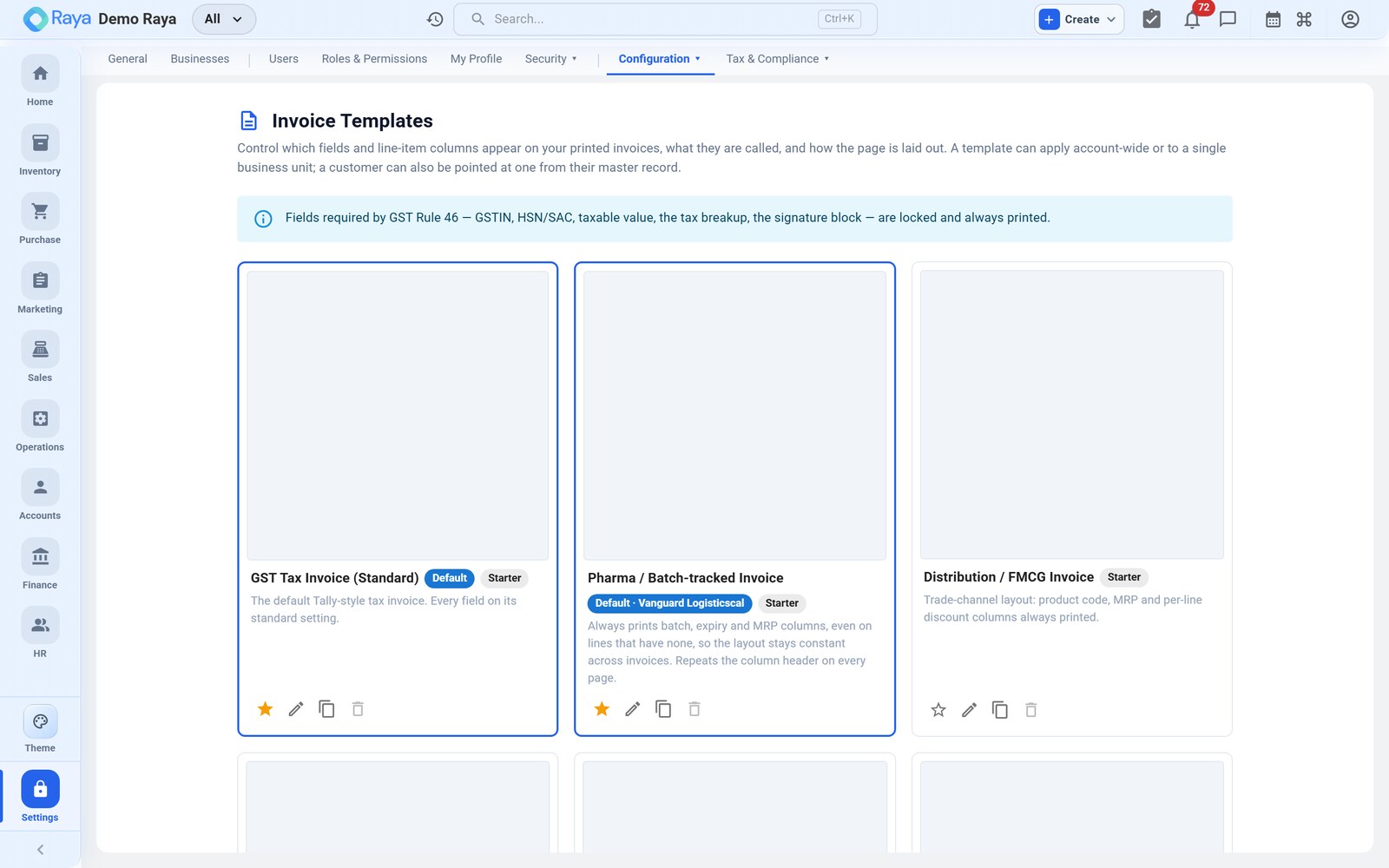
The template gallery
Settings → Invoice Templates shows your templates as a grid of cards. Each card is a live preview rendered through the real PDF pipeline, so you can tell templates apart without opening them. Chips on the card tell you its role:
| Chip | Meaning |
|---|---|
| Default (blue border) | The template used when nothing more specific applies. |
| Business unit | Scoped to one business unit rather than the whole account. |
| Starter | A system template Raya ships. It can be duplicated but not deleted. |
Each card carries four actions: ★ Set default, ✎ Edit, ⧉ Duplicate and 🗑 Delete. Delete is disabled for Starter templates and for the account default.
:::tip Start by duplicating, never editing the Starter Duplicate a Starter template and edit the copy. You keep a clean, known-good original to fall back on, and your customisations live on a template you own. :::
Worked example: customise a GST tax invoice
Say you want a tax invoice that shows your logo on the right, hides the columns you never use, renames "Rate" to "Price/Unit", and prints your bank details in the footer.
1. Duplicate and open the editor
- Find the Tax Invoice (Starter) card and click ⧉ Duplicate.
- Open the copy. The editor opens with the controls on the left and a live preview on the right that re-renders as you type.
- Fill the identity fields at the top:
| Field | What to enter |
|---|---|
| Name | An internal name, e.g. Tax Invoice — Mumbai. |
| Description | Optional note for your admins. |
| Applies to | All business units (account-wide) or a single business unit. |
| Use as the default | Turn on to make this the default for its scope. |
2. Set per-field visibility and labels
Every field is grouped into an expandable section (Seller details, Buyer details, Totals, Transport, E-invoice, and so on). For each field you get a switch (does it print), a label box (rename it), and a Reset button. The switch has four behaviours:
| State | On the switch | What prints |
|---|---|---|
| On | Toggle on | Always printed. |
| Off | Toggle off | Never printed unless you switch it on. |
| Auto | On, with an auto chip | Printed only when the invoice has a value for it (e.g. the e-Way Bill band). |
| Always | On, with an always chip | You switched an Auto field on explicitly — it prints even when empty. |
| Locked | Greyed with a 🔒 | Statutory — always printed, cannot be turned off. |
To rename a field, type into its label box — leaving it blank keeps the default
wording. For this example, set the Rate column's label to Price/Unit. Reset
clears both an explicit switch and a custom label, returning the field to its
catalogue default.
:::info Rule 46 fields are locked Fields required by GST Rule 46 — your and the buyer's GSTIN, the HSN/SAC code, the taxable value, the tax breakup (CGST/SGST/IGST) and the signature block — carry a 🔒 and always print. You can relabel some of them, but you cannot switch them off. :::
3. Reorder and resize the line-item columns
Open the Line item columns section. Each column has ↑ / ↓ arrows to reorder it, the same visibility switch and label box, and a width slider (a relative weight, not millimetres — the renderer normalises the whole row to fit the page). For this example:
- Move HSN/SAC up so it sits right after the product description.
- Turn off the columns you never use (say, a Discount column when you never discount).
- Widen Description and narrow Unit so long product names don't wrap.
4. Set page layout and branding
The Page layout section controls Paper (A4/A5/Letter/Legal), Orientation, Font (Helvetica/Times/Courier), body font size, the four margins, and checkboxes for Compact rows, Repeat the column header on every page and Show page numbers.
The Branding & wording section controls the rest:
| Setting | Example value |
|---|---|
| Logo position | Right |
| Logo height | 48 |
| Accent colour | #2563eb (hex — tints headings and rule lines) |
| Watermark | DRAFT (leave blank on a real invoice) |
| Document title | Tax Invoice |
| Declaration | We declare that this invoice shows the actual price… |
| Jurisdiction note | Subject to Mumbai jurisdiction |
| Footer note | bank name, A/C number, IFSC, or This is a Computer Generated Invoice |
5. Preview and save
The Live preview on the right renders your unsaved draft against sample data through the actual PDF renderer — what you see is what prints. Use Open full-size PDF for a full-page check, then Save template.
Which template is used
When an invoice prints, Raya picks the template by precedence, most specific first:
- A customer pointed at a specific template on their master record.
- The business unit's own default.
- The account default.
GST print copies (Rule 48)
Settings → Invoice Print Copies decides how many labelled copies each invoice prints. GST Rule 48 requires goods invoices in triplicate and services invoices in duplicate. This screen is opt-in: while the profile switch is off, invoices print as a single copy with no banner (unless a customer override applies).
Turn on Set a company-wide copy profile and either use a quick-fill button — GST goods (triplicate) or GST services (duplicate) — or build the list by hand (1–5 copies, drag to reorder, up to 40 characters each). Copy #1 is always the "original". Each label prints as a bordered banner in the top-right of every page of that copy.
| Copy | Default label (goods) | Who it is for |
|---|---|---|
| 1 | ORIGINAL FOR RECIPIENT | The buyer. |
| 2 | DUPLICATE FOR TRANSPORTER | Travels with the goods for the carrier. |
| 3 | TRIPLICATE FOR SUPPLIER | Retained in your own records. |
For services the default profile is two copies: ORIGINAL FOR RECIPIENT and
DUPLICATE FOR SUPPLIER.
The Email all copies to the customer switch controls delivery. Off (recommended) sends only the Original for Recipient copy by email or WhatsApp, while print and download always produce the full set. A customer can override the company profile on their own master record.
Voucher numbering
Voucher Numbering controls the number series for each document type — Sales,
Purchase, Receipt, Payment, Journal, Contra, Credit Note,
Debit Note and Stock Journal. If you configure nothing, Raya auto-numbers each
type with a standard prefix (INV-, PUR/, RCP/, PMT/, JV/, CTR/, CN/,
DN/, SJ/) starting at 0001. Create a series only to customise it.
Worked example: INV/2026-27/0001
Use New Series — a three-step wizard — to build a Sales series that numbers
INV/2026-27/0001, INV/2026-27/0002, …:
Step 1 — Type & Scope. Pick the Sales card, then a fiscal year scope
(Current FY, Next FY, a custom YY-YY, or All FYs). Optionally restrict the
series to a business unit, branch, or (for Sales/Purchase only) a product
category.
Step 2 — Numbering. Fill in each part of the number:
| Part | What you enter | This example |
|---|---|---|
| Series name | An internal label for admins | Sales — 2026-27 |
| Prefix | Text before the number | INV/2026-27/ |
| Suffix | Optional text after the number | (blank) |
| Start number | The first voucher's number | 1 |
| Padding width | Zero-pad to 2–8 digits | 4 → 0001 |
| Restart frequency | Never / Yearly / Monthly | Yearly |
A live preview shows the first number as you type. Here that reads
INV/2026-27/0001. With Yearly restart the counter resets to 0001 on the first
day of each fiscal year (April–March by default).
Step 3 — Flags. Confirm Make this the default (Raya turns it on automatically when it is the first series for that type + fiscal-year combination) and Active.
Scope precedence and locked fields
A voucher always draws from the most specific matching series:
- Business Unit + Branch > Business Unit > Branch > All.
- A Product Category series (Sales/Purchase) wins over business-unit and branch scope — an order matches the category of its highest-value line.
After a series is created, its voucher type, prefix, fiscal year and next number are locked. You can still edit the series name, suffix, restart frequency, padding width, and the Default / Active flags. An inactive series stays in history but can't be picked for new vouchers, and you can't deactivate the only active series for a given type + fiscal year.
Related
- GSTIN Profiles, Business Units & Branches — the units, branches and categories you can scope templates and numbering to.
- Overview — the company logo and branding drawn onto documents.
- Users & Roles — who may change these settings.