Replenishment
Replenishment tells you what to buy next. It watches available stock against each item's reorder point and suggests purchases before you run out — so buying is driven by demand, not guesswork. A run turns those suggestions into draft purchase orders in a single step.
How suggestions are generated
Each stocked item carries a reorder point (and a reorder quantity) per location. A run compares the item's available stock to its reorder point, and anything at or below the line is suggested for reorder. "Available" is not just what's on the shelf:
Available = On hand − Reserved for sales orders + Already on order
So an item can sit on the worksheet even while physical stock looks healthy (heavy sales commitments), and an item that is physically low can be left off because a purchase order is already inbound. Both nettings are configurable in Settings → Purchase & Replenishment.
Set the reorder rule on the item
Reorder rules live on the item, per location. Open Inventory → Items → (the item) → Inventory rules, then Add rule:
| Field | What it does |
|---|---|
| Location | Which warehouse or branch this rule covers. |
| Reorder point | The threshold. At or below it, the item is flagged Running Low and becomes eligible for replenishment. |
| Reorder qty | The default top-up quantity when the item is reordered. |
| Max stock | Optional ceiling — suggestions top stock back up to here where set. |
| Safety stock | Optional buffer kept in reserve above zero. |
| Active | Pause the rule without deleting it. |
:::tip Set the reorder point to cover lead time A good reorder point covers expected usage across the vendor's lead time plus a little safety stock, so a suggestion arrives while you still have cover. Review it on fast movers so the numbers stay realistic. An item with no rule of its own falls back to the account's Fallback reorder level (Settings → Purchase & Replenishment) if one is set. :::
Reading the worksheet
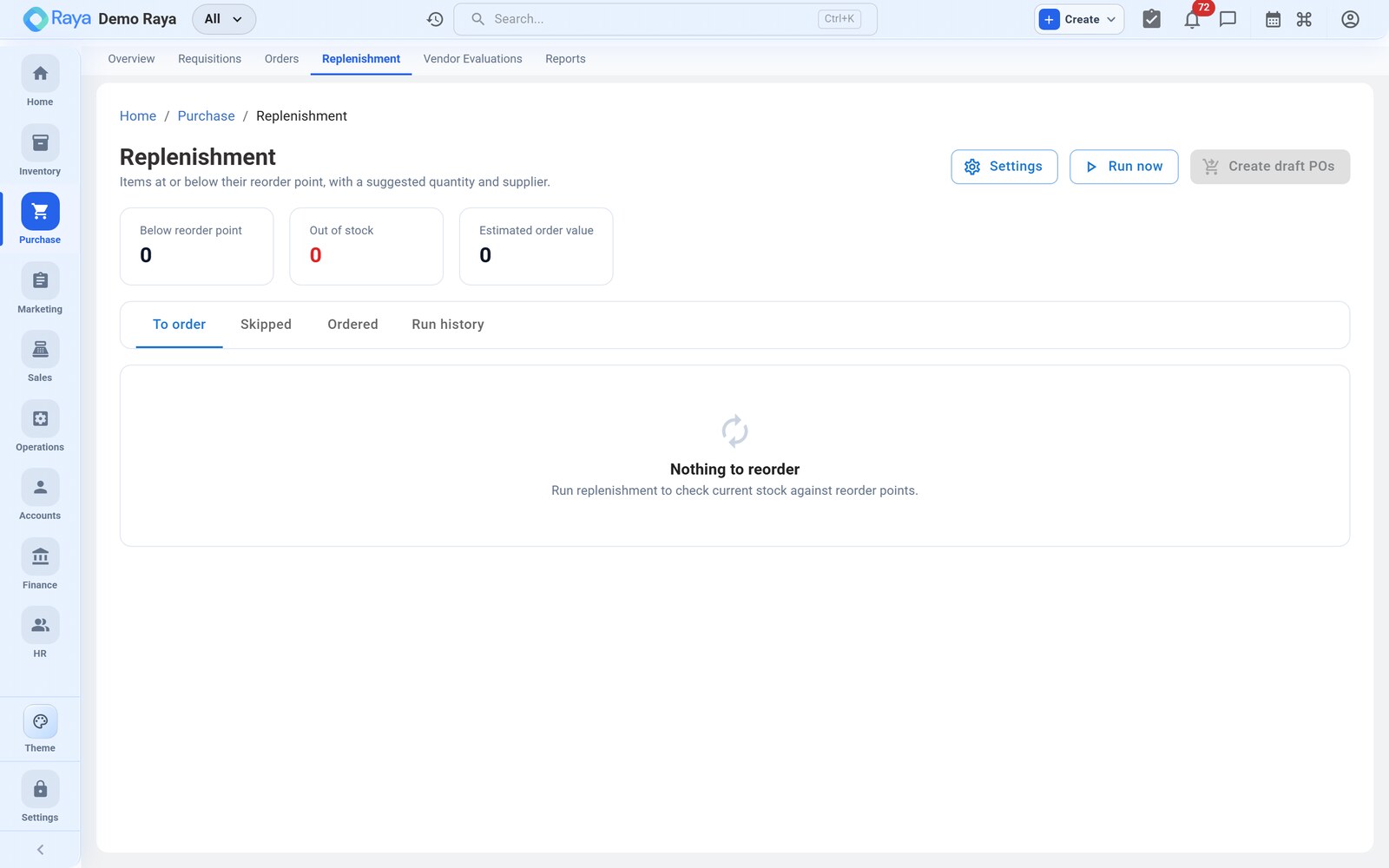
Go to Purchase → Replenishment. Three stat cards summarise the current worksheet — Below reorder point, Out of stock, Estimated order value — and the rows sit under four tabs: To order, Skipped, Ordered and Run history.
| Column | What it shows |
|---|---|
| Item | Product and its unit of measure. |
| Location | Where the shortfall is. |
| On hand | Physical stock at that location. |
| Reserved | Committed to open sales orders. |
| On order | Already inbound on open purchase orders. |
| Available | On hand − Reserved + On order (what the reorder point is tested against). |
| Reorder point | The threshold that triggered the row. |
| Suggested qty | How much to buy to top back up. Editable. |
| Vendor | The chosen supplier, with a chip showing how it was chosen. |
| Unit price | Last/expected buy price. |
| Line value | Suggested qty × unit price. |
The vendor chip explains the pick: Preferred vendor, Only vendor on file, Last purchased from, or Default vendor. A row with no supplier moves to the Skipped tab rather than the order list.
A real scenario
Sales have been busy this week. You click Run now and the worksheet reports two items To order:
| Item | Location | On hand | Reserved | On order | Available | Reorder point | Suggested qty | Vendor |
|---|---|---|---|---|---|---|---|---|
| HDPE Granules 25 kg | Main Warehouse | 40 | 30 | 0 | 10 | 25 | 100 | Meridian Polymers (Preferred) |
| Carton Box 12×9 | Main Warehouse | 8 | 0 | 0 | 8 | 20 | 200 | Apex Packaging (Last purchased from) |
Notice HDPE Granules: 40 kg on hand looks fine, but 30 kg is reserved for open sales orders, leaving 10 available — below the reorder point of 25 — so it is suggested. This is how sales-committed demand pulls an item onto the list.
Review and adjust
The To order tab is editable so a buyer can sanity-check every line before ordering:
- Adjust the suggested quantity — type a new number in the Suggested qty box (for example, round the 200 cartons up to a full pack of 250). The line value updates.
- Change the vendor — pick a different supplier in the Vendor box if the suggested one isn't right for this order.
- Ignore a line — use Ignore to drop a suggestion you don't want to act on now; it leaves the worksheet without creating anything.
:::note Sales-committed demand Stock reserved for open sales orders counts as unavailable, so a large order can pull an item onto the worksheet even while on-hand stock looks healthy. Conversely, stock already on order is added back, so Raya won't suggest buying the same item twice while a PO is in transit. :::
Group by vendor and generate the POs
- In To order, tick the lines you want to buy (or the header checkbox to select all orderable rows — a row with no vendor or zero quantity can't be selected).
- Click Create draft POs. Raya groups the selected lines by vendor, so each supplier gets one order rather than one PO per line.
- Draft purchase orders are created and you're taken to Purchase Orders, where you confirm rates and approve or send them.
:::tip Let the schedule do the watching Under Settings → Purchase & Replenishment you can enable Automatic Replenishment to scan stock on a schedule (Daily / Hourly / Manual), optionally auto-create draft POs, respect vendor minimum order quantities, apply a re-order cooldown so an item isn't re-suggested for a few days, and skip orders below a minimum order value. :::
Skipped and run history
The Skipped tab lists items that were below their reorder point but couldn't be ordered, with a reason: No vendor set, Ordered recently (inside the cooldown window), Order value below the minimum, or No quantity required. Fix the cause — usually setting a preferred vendor on the item — and the line returns on the next run.
The Run history tab is an audit trail: when each run happened, whether it was triggered by a person (manual) or the system (scheduled), how many items were evaluated, how many suggestions came out, and how many POs were raised.
Related
- Purchase Orders — confirm, approve and send the generated POs.
- Requisitions — for ad-hoc needs that need sign-off.
- Items — where reorder points, reorder quantities and lead time live.
- Procure-to-Pay workflow — the full cycle, end to end.