Purchase Orders
A purchase order (PO) is your formal commitment to buy from a vendor — the items, quantities, rates, taxes and terms. Approving it seeds the goods receipt and lets you send the PO PDF straight to the vendor. This is the hub of the whole procure‑to‑pay cycle, so we build one end to end here.
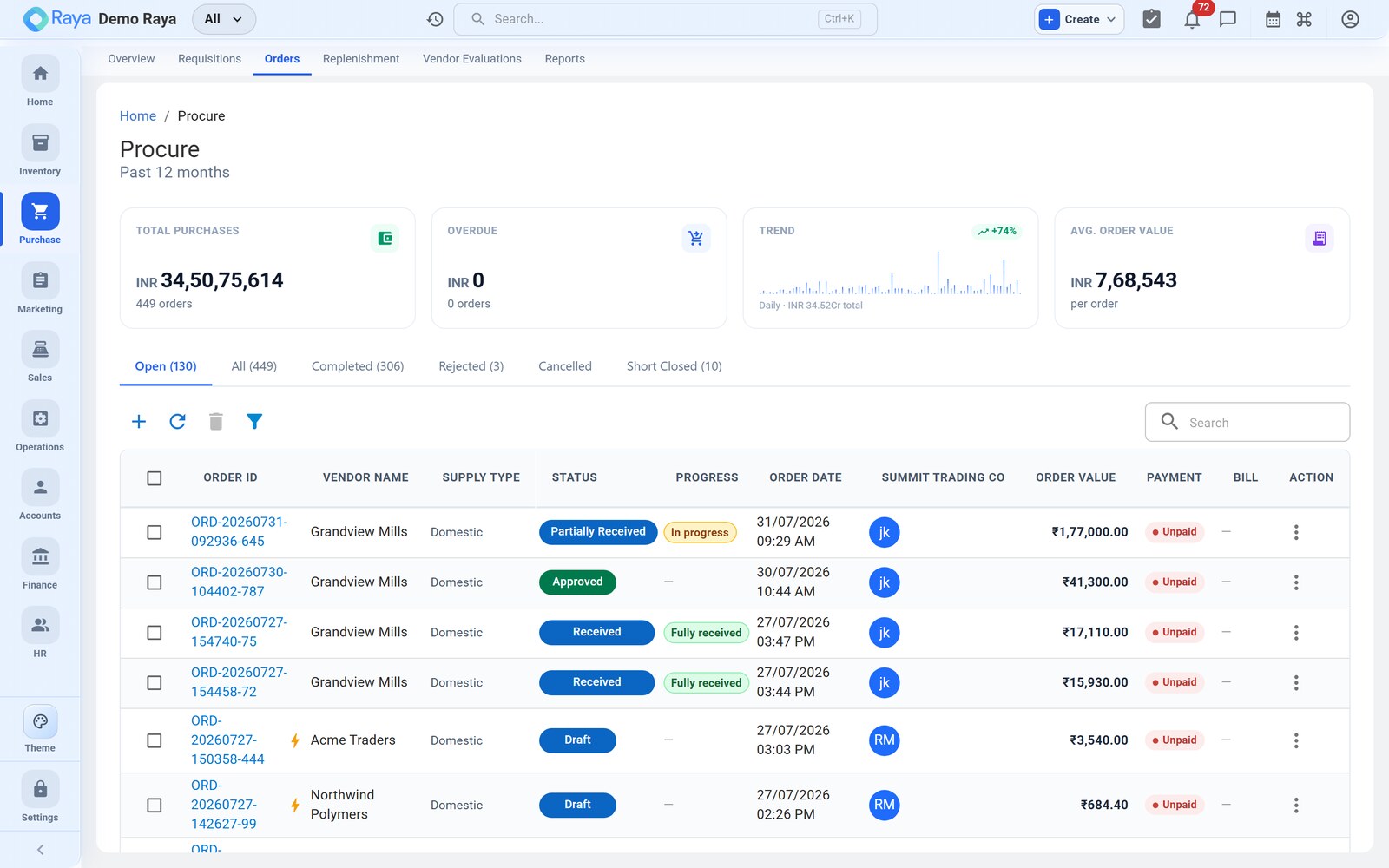
The PO we'll build: PO‑3391
We'll raise PO‑3391 on the Bhiwandi Warehouse (Maharashtra) to Gujarat Polychem (Vapi, Gujarat) for two lines of raw material, on Net 45 terms:
| Line | Item | HSN | Qty | Rate | Amount |
|---|---|---|---|---|---|
| 1 | HDPE Granules | 3901 | 30 MT | ₹27,600 / MT | ₹8,28,000 |
| 2 | Masterbatch (white) | 3206 | 400 kg | ₹265 / kg | ₹1,06,000 |
Taxable ₹9,34,000 + IGST 18% ₹1,68,120 = ₹11,02,120. Watch how the GSTIN drives the tax split.
1. Fill the header
Go to Purchase → Purchase Orders → + New PO (or convert an approved requisition, which pre‑fills these lines). Complete each header field:
- Vendor — look up Gujarat Polychem, or + Add new. The vendor's GSTIN, billing address, payment terms and TDS policy flow in from the party record. Confirm the GSTIN reads 24… (Gujarat) — this single field decides your tax split in step 3.
- PO date — defaults to today; set 04 Jul 2026.
- Expected delivery — set 18 Jul 2026. This drives the "awaiting receipt" list and later feeds the vendor's on‑time‑delivery score.
- Deliver‑to (ship‑to) location — choose Bhiwandi Warehouse. Its state (Maharashtra, 27) is the place of supply Raya compares against the vendor's GSTIN.
- Buyer — the user who owns this PO and gets the receipt/bill notifications.
- Currency & payment terms — leave INR; terms flow in as Net 45 (add Incoterms only for imports — see Import Purchase).
:::note Deliver‑to sets the tax, not the billing address GST is decided by place of supply, which for goods is the deliver‑to location's state. Change the deliver‑to warehouse and Raya may flip CGST/SGST to IGST — check the tax column after you switch warehouses. :::
2. Add the line items
Add one row per material. For each line pick the product, quantity, unit and rate:
- HDPE Granules — 30, unit MT, rate ₹27,600. The rate pre‑fills from the item's last purchase price; override it if the vendor quoted differently.
- Masterbatch (white) — 400, unit kg, rate ₹265.
Raya calculates Amount = Qty × Rate per line (₹8,28,000 and ₹1,06,000) and reads the GST rate from each item's HSN/SAC (18% here).
:::tip Landed cost Add freight, insurance or clearing charges as extra lines on the PO so they are apportioned into each item's landed cost when the goods are received — the stock value then reflects what the material truly cost to get to your dock. :::
3. How the GST splits — CGST/SGST vs IGST
Raya never asks you to choose the tax type. It compares the vendor's GSTIN state with the deliver‑to state and applies the right heads automatically:
| Situation | Rule | On PO‑3391 |
|---|---|---|
| Vendor state ≠ deliver‑to state | Inter‑state → IGST at the full rate | Gujarat (24) → Maharashtra (27): IGST 18% |
| Vendor state = deliver‑to state | Intra‑state → CGST + SGST, each half the rate | If both were in Gujarat: CGST 9% + SGST 9% |
Because our supply is inter‑state, the tax is a single IGST 18% = ₹1,68,120:
Taxable value ................. 9,34,000
IGST @ 18% ................... 1,68,120
                              -----------
PO value ..................... 11,02,120
Had Gujarat Polychem delivered to a Gujarat warehouse of yours, the very same ₹1,68,120 would split CGST ₹84,060 + SGST ₹84,060 instead — same total, two heads. Either way the tax lands in your Input GST (ITC) when the bill posts.
:::caution Check the GSTIN before you send An intra‑state vendor wrongly saved with an out‑of‑state GSTIN (or a blank one) will tax the PO as IGST and break your ITC match at bill time. If the tax column looks wrong, fix the vendor's GSTIN, not the tax on the line. :::
4. Review, save or approve
Review the totals card — taxable value, tax and grand total — then:
- Save as Draft to keep working. Draft POs are fully editable.
- Approve to commit the order. Approval seeds the goods receipt so the warehouse can receive against PO‑3391, and moves the PO out of Draft.
5. Send to the vendor
Choose Send to Vendor to email the PO PDF to the address on the vendor record. The PO is now formally placed and the state shows Sent. The vendor can acknowledge (Accepted); if you don't have an email on file, download the PDF and send it your own way — the state still advances.
Track, revise and cancel
Once live, a PO carries a state and a separate payment status:
| State | Meaning |
|---|---|
| Draft | Being prepared; fully editable. |
| Sent / Approved | Committed and with the vendor; receipt seeded. |
| Partially Received | Some quantity has arrived via a GRN. |
| Received (Completed) | Everything ordered is in (or the balance is closed). |
Plus a payment status of Unpaid → Partial → Paid that Finance drives from the bill.
Revise a PO
Draft POs are edited freely. After approval, use Revise so the change is auditable — for example, if Gujarat Polychem confirms only 29.5 MT of HDPE is available, revise the line so the PO and the incoming GRN agree. Each revision is versioned and the vendor can be re‑sent the updated PDF.
Cancel a PO
Cancel a PO at any time before it is fully received. Cancelled POs are retained for the record (never deleted), and any seeded‑but‑unused receipt is voided.
:::note Linked to sales A PO can be linked to the sales order that triggered it, so back‑to‑back buying (buy what you just sold) is traceable from customer order to vendor receipt. :::
What happens next
Approving and sending PO‑3391 hands off to the warehouse. When Gujarat Polychem delivers, you record GRN‑1187 — 29.5 MT of HDPE (0.5 MT short) plus the 400 kg of masterbatch — with a per‑line quality check, and the first accounting voucher posts.
Related
- Goods Receipt (GRN) — receive against this PO.
- Import Purchase — foreign vendors, customs IGST and FX.
- Procure‑to‑Pay workflow — the full cycle, end to end.
- Vouchers — the Purchase and Payment vouchers a PO produces.
- TDS — §194Q on high‑value goods purchases.
- Inventory — items, HSN/SAC codes and stock.