Locations
A location is any physical place where stock is kept — a warehouse, store, shop, office or factory. Stock is tracked per location, so you always know not just how much you have but where it is, and every transfer, adjustment and order names the location it touches. This page sets up the two locations used throughout the Inventory docs and explains how a location becomes a GST branch.
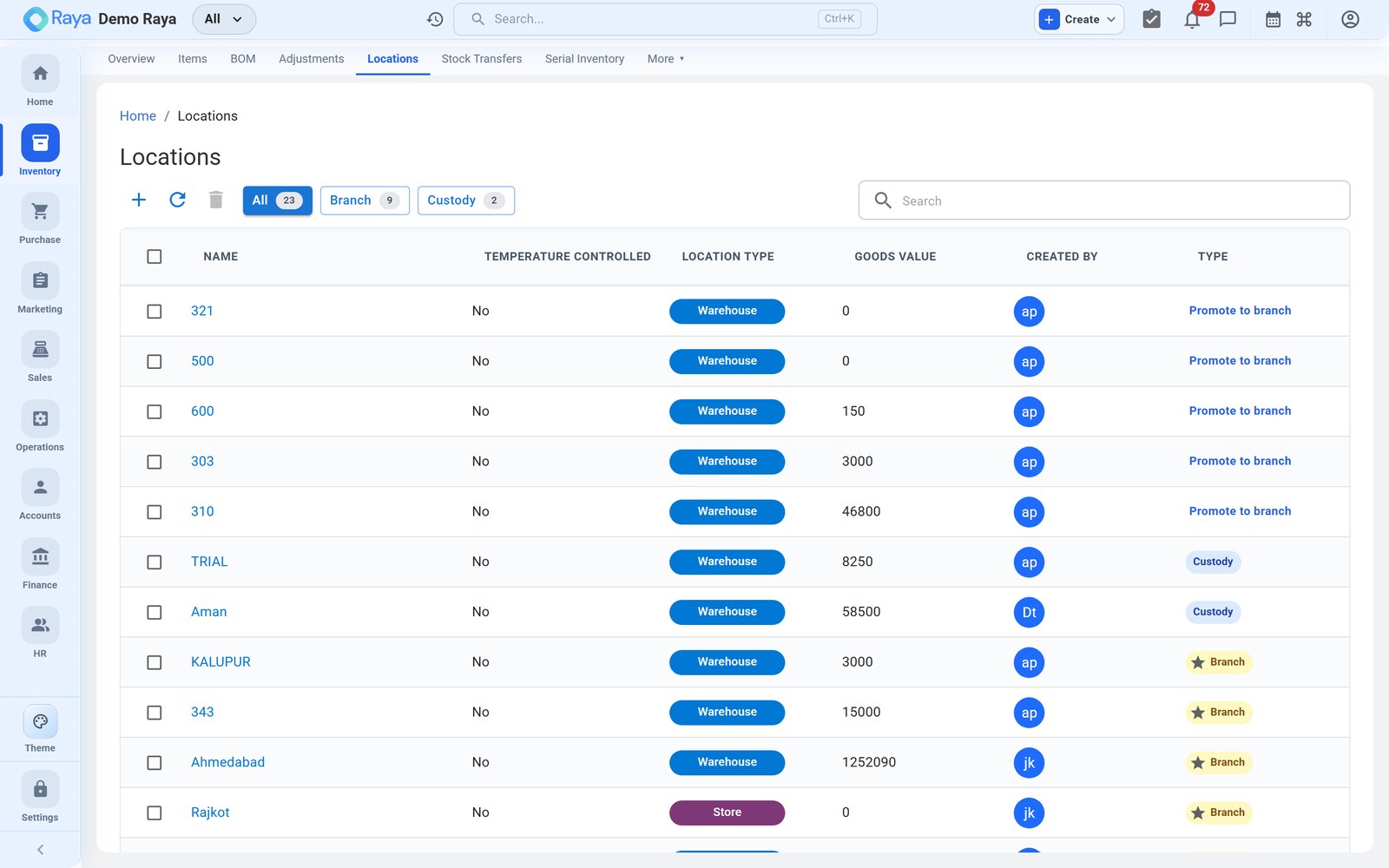
Location types
| Type | Typical use |
|---|---|
| Warehouse | Bulk storage and receiving — e.g. Vatva WH-1 |
| Store / Depot | Forward stock near customers — e.g. Odhav Depot |
| Shop | Retail point of sale |
| Factory | Production floor where work orders consume and output |
| Office | Small consumable/asset stock |
| Home | Field or vehicle stock |
Worked example — create "Vatva WH-1"
-
Go to Inventory → Locations → + New Location.
-
Fill in the details:
Field Value Name Vatva WH-1Type Warehouse Address Plot 214, Vatva GIDC, Ahmedabad, Gujarat 382445 Geo-coordinates 22.9623, 72.6266 (optional, for maps/routing) Temperature-controlled Off (granules are ambient-stable) GSTIN 24AABCR1234M1Z5 (Gujarat place of business) Default ✓ Yes — new stock defaults here -
Save. The location is now selectable on orders, transfers, adjustments and opening stock.
Then repeat for Odhav Depot (Type Store/Depot, Odhav Ring Road, Ahmedabad, same GSTIN 24AABCR1234M1Z5, Default off).
:::tip Flag climate-controlled storage where it matters Turn Temperature-controlled on for cold rooms or humidity-sensitive stores. It's a searchable flag on the location so you can route batches that need it to the right place — useful when you also run batch tracking with expiry dates. :::
Racks and sub-locations
Within a large warehouse you can track stock down to the rack, so pickers know exactly which aisle to go to.
- Lay out racks such as
A1–A6(granule big-bags) andB1–B6(finished drums). - Each item carries its rack on the item master; a work-order output or GRN can be directed to a specific rack.
- Search the items list with
rack:B3to see everything held in a given aisle.
Stock per item, per location
Once locations exist, Product Locations is the live stock view — for every item at every location it shows:
| Column | Meaning |
|---|---|
| Available | What is physically on hand |
| Allocated | Reserved for confirmed sales orders / work orders, not yet shipped |
| Free-to-promise | Available − Allocated (what you can still sell today) |
| Reorder / Min / Max | Local overrides of the item's default levels, per location |
| Last counted on | Date of the last stock take at this location |
So HDPE Granules can show 20 MT available, 2.3 MT allocated to a drum work order at Vatva WH-1 (17.7 MT free-to-promise), while Odhav Depot carries its own separate line.
:::tip Bulk moves and level tweaks Select several rows in Product Locations to update reorder levels or move stock to another location in one action — handy when a whole rack is re-slotted or a depot's minimums change seasonally. :::
Locations and branches
A branch is a location (or group of locations) linked to a GSTIN — the way Raya
models a place of business with its own GST registration. Because Vatva WH-1 and
Odhav Depot share the same GSTIN 24…Z5, they are one branch: moving stock
between them is an internal transfer, not a taxable supply.
| Vatva WH-1 | Odhav Depot | Bhiwandi Branch | |
|---|---|---|---|
| State | Gujarat | Gujarat | Maharashtra |
| GSTIN | 24AABCR1234M1Z5 | 24AABCR1234M1Z5 | 27AABCR1234M1Z3 |
| Same branch? | — | ✓ same as WH-1 | ✗ separate branch |
The active-branch selector scopes what you see across Sales, Purchase and Inventory and stamps the right GSTIN onto documents.
:::note Location vs. branch Set up locations here in Inventory; link them to GST registrations as branches in Settings. A same-GSTIN move (WH-1 → Odhav) posts stock-in-transit; a different-GSTIN move (Gujarat → Maharashtra) is a supply and needs the proper document — see Stock Transfers and Organisation structure. :::
Related
- Stock Transfers — move stock between these locations.
- Stock Adjustments — correct stock at a location.
- Working with Items — stock is tracked per item per location.
- Organisation structure — accounts, locations and branches.