Employees
HR → Employees is the master record for everyone in your organisation — their profile, statutory identifiers, employment details and pay structure. Get this record right once and it feeds attendance, leave and every monthly payroll run without re‑keying.
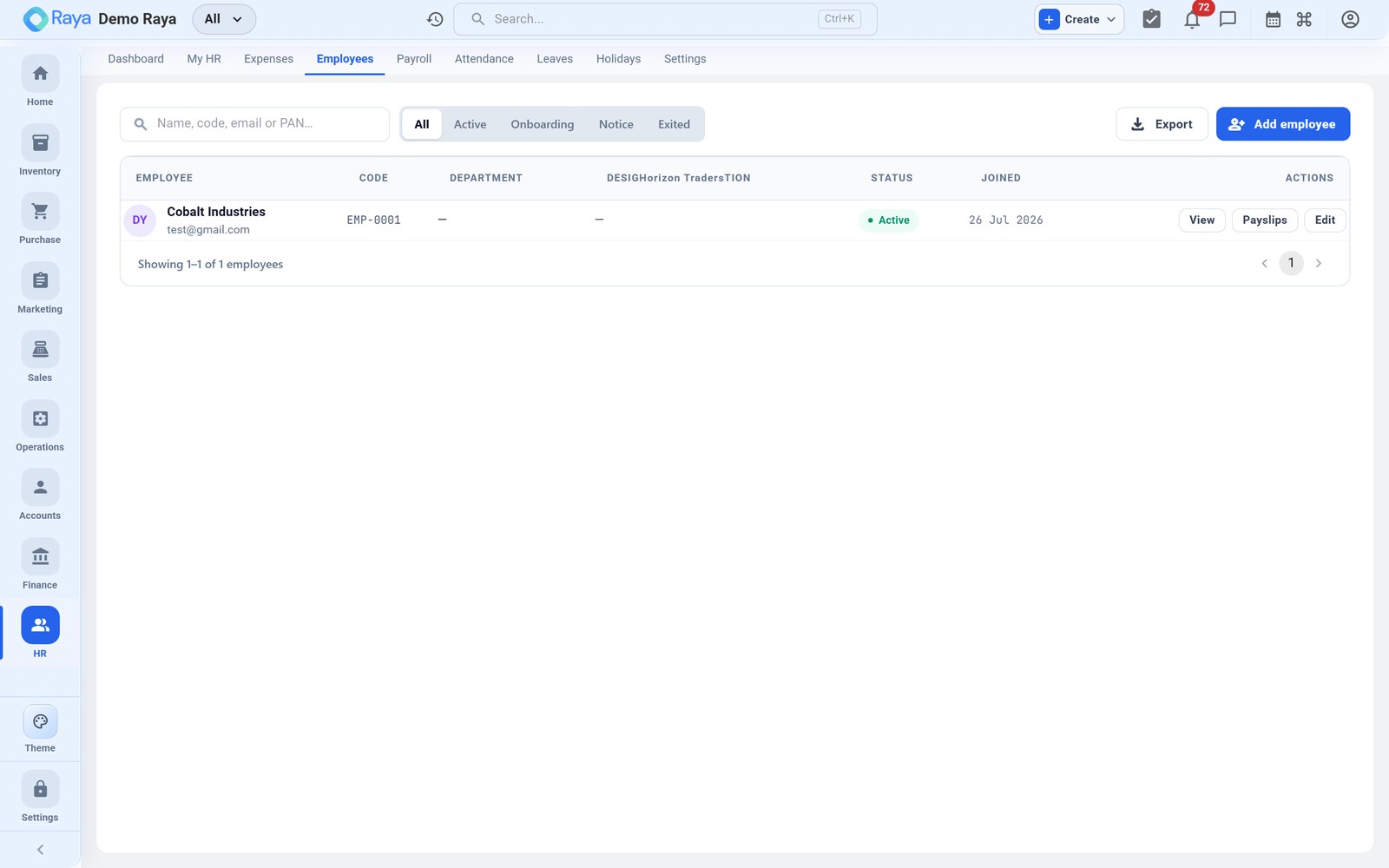
This page onboards our worked‑example hire, R. Mehta, step by step, and shows exactly what to put in each field.
The employee profile
Each employee record is organised into sections. You can save a draft with just the personal section and come back to complete the rest.
| Section | What it holds | Needed for |
|---|---|---|
| Personal | Name, date of birth, gender, marital status, blood group | Identity, records |
| Contact | Phone, email, address and an emergency contact | Communication, HR safety |
| Statutory IDs | Aadhaar, PAN, UAN and ESI numbers | Payroll & compliance |
| Bank details | Account used for salary disbursement | Paying net salary |
| Employment | Department, designation, salary grade, type, status, work location | Attendance, leave, cost centre |
| Salary | The assigned salary structure and its components | The payroll run |
:::note Sensitive data (PII) Government IDs and bank details are personal information. They are stored securely and are visible only to users with HR permissions. Enter them once, at onboarding, so payroll and statutory reports have what they need. :::
Create an employee — onboarding R. Mehta
Click + New Employee and work through the sections.
1. Personal details
- Full name —
R. Mehta. - Date of birth, gender, marital status and blood group — used on the profile and for emergency records. None of these affect pay.
- Optionally upload a profile photo.
2. Contact & emergency contact
- Enter the employee's mobile number and work email (the email becomes their self‑service login if you invite them).
- Add the residential address.
- Record an emergency contact — name, relationship and phone. Keep this current; it's the number HR calls if something happens on site.
3. Employment details
- Department —
Production. The department doubles as the cost centre the employee's pay is reported against. - Designation — e.g.
Machine Operator. - Salary grade — pick the band this role sits in (see Salary grades); it keeps pay consistent across similar roles.
- Employment type —
Full‑time(or Part‑time / Contract). - Status —
Active. Status drives who is pulled into attendance and payroll. - Work location —
Pune (Maharashtra). The location's state determines the Professional Tax slab applied later in payroll. - Date of joining —
1 July 2026. Leave accrual and pro‑rata pay start here.
4. Statutory IDs
Enter the government identifiers. These are stored as reference data and printed on statutory outputs; Raya does not validate them against government portals.
| ID | What it is | Format |
|---|---|---|
| Aadhaar | Individual identity number | 12 digits |
| PAN | Permanent Account Number (income tax) | 10 chars, e.g. ABCDE1234F |
| UAN | Universal Account Number for Provident Fund | 12 digits |
| ESI number | Employees' State Insurance number (if covered) | 17 digits |
:::tip When ESI doesn't apply ESI only covers employees whose gross wage is ₹21,000/month or less. R. Mehta's gross is ₹30,000, so he is outside ESI and won't have an ESI number — leave it blank. See how the ceiling works on the Payroll page. :::
5. Bank details
Enter the account number, IFSC, bank and branch used to pay net salary. This is the account the payslip's net pay is disbursed to.
:::info Bank‑file export is on the roadmap Raya doesn't yet generate a bank upload file for bulk salary disbursement. Net‑pay figures come from the payslip; you disburse them from your bank as usual. :::
6. Salary structure
Assign R. Mehta a salary structure built from components — earnings such as Basic, HRA and allowances, plus deduction components. His monthly structure:
| Component | Type | Amount (₹) | Notes |
|---|---|---|---|
| Basic | Earning | 15,000 | PF is 12% of this |
| HRA (House Rent Allowance) | Earning | 6,000 | |
| Special / Other Allowances | Earning | 9,000 | |
| Gross (monthly CTC) | 30,000 | ||
| Provident Fund (employee) | Deduction | 12% of basic | Computed at pay time |
| Professional Tax | Deduction | State slab | Maharashtra → ₹200 |
| TDS | Deduction | Per income‑tax slab | Nil at this salary |
Finish by clicking Save.
:::info Statutory items are configurable components PF, ESI, Professional Tax and TDS are set up as deduction components — you define the rate or formula, and Raya applies it on each payslip. Automated statutory filing (PF/ESI/PT returns and challans) is on the roadmap; the computations themselves are shown in full on the Payroll page. :::
Employment type & status
- Employment type — Full‑time, Part‑time or Contract.
- Status — Active, On notice, Resigned or Terminated. Only Active employees are included in attendance and payroll runs; changing the status is how you take someone out of the next cycle without deleting their history.
- Employment history records changes such as promotions, transfers and grade revisions over time, so you keep a career trail on each record.
Salary grades and templates
Two features keep pay consistent as you grow:
- Salary grades define bands (minimum/maximum) for a level of role, so a new hire's structure fits an agreed range.
- Salary structure templates are reusable component sets. Build a "Shop‑floor — Full‑time" template once (Basic 50%, HRA 20%, allowances 30%), then apply it to each new hire and adjust the amounts. R. Mehta's structure above follows that 50/20/30 split of his ₹30,000 gross.
Self‑service
Invite the employee to the self‑service portal so they can view their own profile, apply for leave, check leave balances, view attendance and download payslips — without contacting HR. Portal access is granted from Settings.