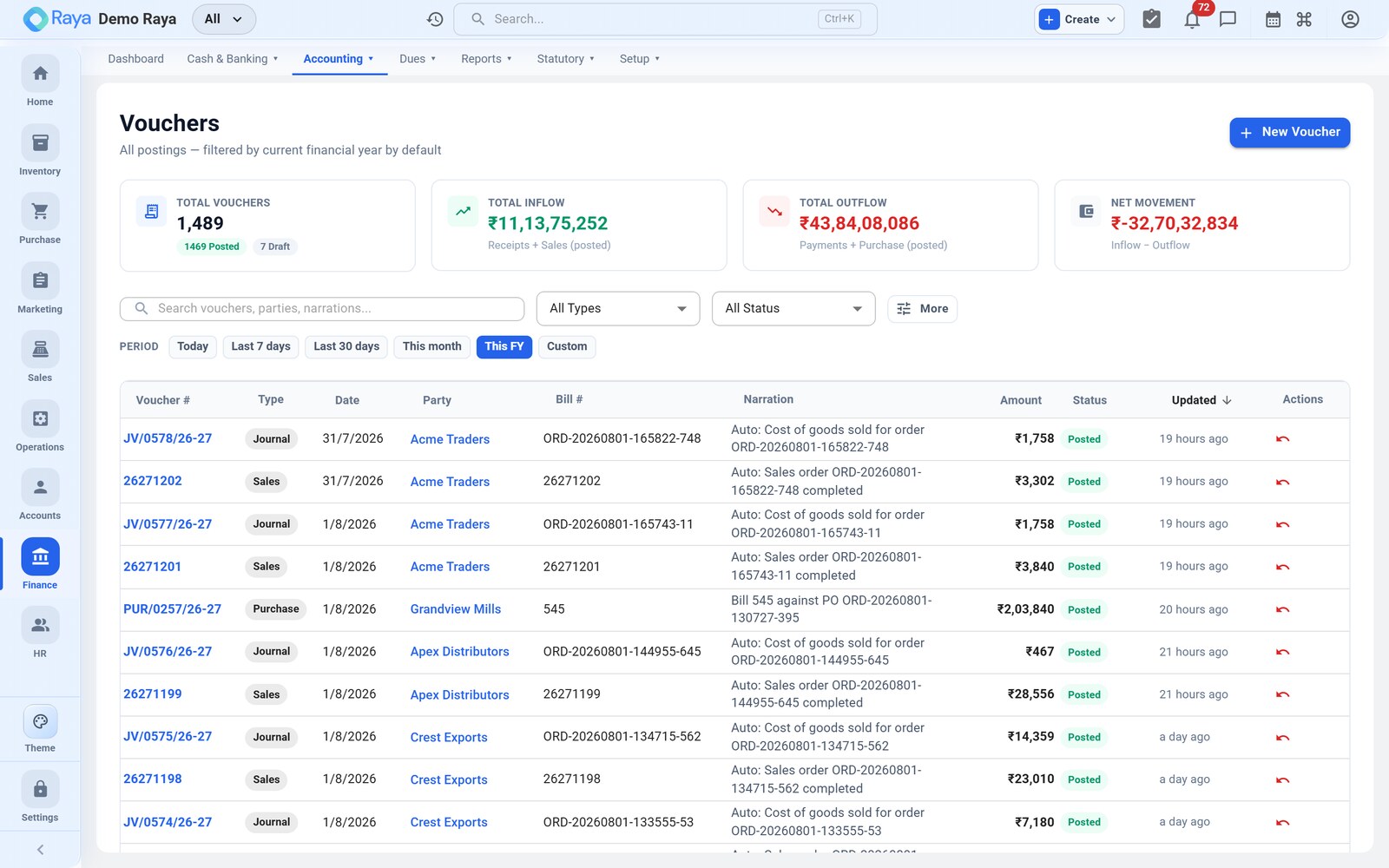
Vouchers
A voucher is a single accounting entry made of balanced debit and credit lines. Most vouchers are created for you by day-to-day operations; you post manual ones for adjustments, expenses and one-off entries. This page is the practical guide to posting them — the eight types, the quick-fill wizards for GST/RCM/TDS/TCS, advances, bill settlement, and how to correct an entry after it's posted.
The one rule that never changes
Every voucher is double-entry: total Debit must equal total Credit. Raya shows a live "Voucher is balanced ✓" chip at the bottom of the grid — you can only save when it is green.
- Debit (Dr) — value coming in: an asset increases, or an expense is incurred.
- Credit (Cr) — value going out: a liability or income increases, or an asset decreases.
You rarely need to reason this out by hand. The Quick-fill wizards (the coloured buttons above the entries grid) build the correct Dr/Cr pattern for GST, reverse charge and TDS for you, and show a preview before anything posts.
The eight voucher types
| Type | Raised for | Typical entry | How it's created |
|---|---|---|---|
| Sales | Customer invoice | Customer (Dr) → Sales + Output GST (Cr) | Auto, from a completed sales order |
| Purchase | Supplier bill | Purchase + Input GST (Dr) → Vendor (Cr) | Auto, from a purchase order / bill |
| Receipt | Money received | Bank/Cash (Dr) → Customer/Income (Cr) | Auto, when a payment is recorded |
| Payment | Money paid out | Vendor/Expense (Dr) → Bank/Cash (Cr) | Auto, when a payment is recorded |
| Credit Note | Sales return / reduction | Sales + Output GST (Dr) → Customer (Cr) | Auto, from a credit note |
| Debit Note | Purchase return / reduction | Vendor (Dr) → Purchase + Input GST (Cr) | Auto, from a debit note |
| Contra | Cash ↔ bank (or bank ↔ bank) transfers | Bank (Dr) → Cash (Cr) | Manual |
| Journal | Everything else — accruals, depreciation, provisions, RCM, ITC reversal, write-offs | Any (Dr) → Any (Cr) | Manual |
:::tip Most vouchers are automatic Sales, Purchase, Receipt, Payment and the two notes flow straight from operations. In practice finance types only Contra and Journal vouchers by hand — for adjustments, expenses and corrections. :::
Voucher status
A voucher moves through a simple lifecycle: Draft → Pending Approval → Approved → Posted. Only a Posted voucher affects the ledgers. A posted voucher can later be Reversed or Amended, but never quietly edited or deleted (see Correcting a posted voucher).
Post a manual journal
Use a Journal for any adjustment that doesn't come from an order or a payment — depreciation, accruals, provisions, expense reclassifications.
- Go to Finance → Vouchers → + New Voucher.
- Set Voucher type to Journal.
- Confirm the date and voucher number (the number comes from the series automatically).
- Enter a narration — a short description that appears in reports (required).
- In the Ledger Entries grid, add at least two lines: pick a ledger and type a Debit amount, then a ledger and a Credit amount. Type an account name that doesn't exist yet and choose + Create to add the ledger without leaving the screen.
- Watch the "balanced ✓" chip turn green.
- Save, or press Ctrl + Enter.
Worked example — monthly depreciation of ₹25,000 on plant & machinery:
Dr  Depreciation Expense              25,000
Cr      Accumulated Depreciation          25,000
                              ------------------
                              25,000    25,000   ✓ balanced
A Contra voucher works the same way, except both ledgers are cash or bank accounts —
e.g. a ₹1,00,000 cash withdrawal from the bank is Dr Cash / Cr Bank.
:::tip Multi-party journal For a set-off between a customer and a vendor, turn on the "Multi-party voucher" switch at the top of the grid — a Contact column appears so you can set the party per row. :::
Quick-fills — GST, RCM, TDS, TCS
The coloured buttons above the grid open wizards that build the tax legs for you. Fill the fields, check the preview, then Pre-fill entries → Save.
GST Quick-fill (cyan)
For any Sales or Purchase entry with CGST/SGST or IGST.
- Click GST Quick-fill.
- Direction: Output (selling) or Input (buying — claims ITC).
- Tick Inter-state (IGST) if the supply crosses states; leave it off for intra-state (CGST + SGST).
- Enter the taxable base and pick the GST rate (0 / 0.1 / 3 / 5 / 12 / 18 / 28%).
- Pick the party ledger and the Sales/Expense ledger, then pre-fill.
Worked example — intra-state sale of ₹1,00,000 + 18% GST:
Dr  Customer (Sundry Debtors)       1,18,000
Cr      Sales                          1,00,000
Cr      Output CGST @9%                    9,000
Cr      Output SGST @9%                    9,000
Raya splits CGST/SGST 50/50 automatically and stamps the GST treatment so the figures land in GSTR-1 and GSTR-3B.
RCM Quick-fill (purple)
For purchases where you pay the GST directly to the government — GTA freight, legal fees, security services, import of services (§9(3)/9(4)).
- Click RCM Quick-fill and pick the scenario (GTA freight, Security, Advocate, Import of services, or Custom) — the default rate fills in.
- Choose inter-/intra-state, enter the taxable amount and rate.
- Pick the Expense ledger and the Bank/Vendor ledger, then pre-fill.
Worked example — GTA freight of ₹10,000 @5% intra-state:
Dr  Freight (Expense)                10,000
Dr  Input CGST @2.5% (ITC)              250
Dr  Input SGST @2.5% (ITC)              250
Cr      GTA Vendor / Bank               10,000
Cr      Output CGST (RCM) @2.5%            250
Cr      Output SGST (RCM) @2.5%            250
Raya auto-wires both sides — the input ITC legs and the RCM output-liability legs — so the entry appears in GSTR-3B Table 3.1(d) with the ITC in Table 4, without double-counting.
TDS Quick-fill (orange)
For payments where TDS is deducted (you paying a vendor) or withheld from you (a customer paying you). See the dedicated TDS guide for the full mechanics.
- Click TDS Quick-fill and set Direction — Deducted by us or Withheld from us.
- Pick the TDS Section (194C / 194H / 194I / 194J / 194A / 194Q…) — the default rate fills in.
- Enter the gross base and rate, pick the party and Bank/Cash ledgers.
Worked example — professional fee of ₹1,00,000, §194J @10% deducted by us:
Dr  Professional Fees               1,00,000
Cr      TDS Payable (194J)                10,000
Cr      Bank                              90,000
The section code is stamped on the entry, so a Form 26Q deduction log is created when you post.
Collecting TCS on a sale (§206C(1H))
- Create the Sales entry (or use GST Quick-fill for the goods part).
- Add a line crediting TCS Payable for the TCS amount, and increase the customer Debit by the same amount.
- In Advanced → TDS Section, choose 206C(1H) — it flows to Form 27EQ.
Advances
Advance received from a customer (with GST)
When a customer pays before you invoice, GST is due on the advance.
- Start a Receipt, pick the customer, and tick "This is an advance receipt."
- Enter the GST rate on advance (%) (e.g. 18) — Raya treats the receipt as GST-inclusive and books the GST-on-advance automatically.
Worked example — ₹1,18,000 advance at 18% GST-inclusive:
Dr  Bank                             1,18,000
Cr      Advance from Customer           1,00,000
Cr      Output GST on Advance @18%         18,000
It reports in GSTR-1 Table 11A; when you later raise the invoice, Raya offers to adjust the advance (Table 11B).
Advance paid to a vendor
Start a Payment, pick the vendor: Dr Advance to Vendor / Cr Bank. The advance sits
on the party record until you allocate it against a future bill.
Bill-wise allocation & settlement
On a Receipt or Payment for a party with open bills, an allocation table appears so the payment reduces the right invoice.
- Click Auto-allocate FIFO (oldest bills first), or type the amount against each bill.
- Any unallocated amount is kept as an advance / on-account balance on the party automatically.
- The live counter shows Voucher · Allocated · Residual. Save.
Worked example — a customer pays ₹50,000 against two open invoices (₹30,000 and ₹40,000). Allocate ₹30,000 to fully clear the first bill and ₹20,000 against the second; the second is left ₹20,000 open, and the customer's residual is nil.
Credit & Debit notes
-
Credit Note — customer returns goods or you reduce their invoice. Reverses the sale using the same GST treatment as the original; reports in GSTR-1 CDNR.
Dr Sales 20,000Dr Output GST @18% 3,600Cr Customer (Sundry Debtors) 23,600 -
Debit Note — you return goods to a supplier or reduce their bill. Mirrors the original purchase.
Dr Vendor (Sundry Creditors) 11,800Cr Purchases 10,000Cr Input GST @18% 1,800
Correcting a posted voucher
Posted vouchers are immutable so the audit trail can't be quietly changed. You never delete a posted voucher — you reverse it. Pick the method by what you need to preserve.
| Action | When to use | What happens |
|---|---|---|
| Edit & Correct (orange) | Ordinary fix to a posted voucher | Re-balances the ledger and writes an audit-trail entry (who / when / before / after). Blocked if the period is hard-closed. |
| Amend (Sales/Purchase/CN/DN) | The buyer needs the original bill number preserved on the GST return | The original is reversed and a new amendment voucher posts, linked back — shows under GSTR-1 Table 9A (B2B amendments). |
| Reverse | Cancel an entry entirely | Raya posts an equal-and-opposite mirror so everything nets to zero in the books and returns. The original stays visible, linked to its reversal. |
:::note Locked periods Once a period is closed, backdated postings before the lock date are blocked. Post the correction in the current open period instead. :::
Tips & shortcuts
- Ctrl + Enter saves the voucher.
- Type an unknown account name in a line and pick + Create to add a ledger inline.
- A red border on a line warns that the GST account clashes with the chosen GST treatment — fix it before saving.
- Attach the bill/invoice/receipt (PDF/image) in the right-hand panel before saving.
- Use the Quick-fill buttons for anything with GST or TDS — they prevent the most common posting mistakes.
Cheat sheet
| You want to… | Voucher | Easiest path |
|---|---|---|
| Raise a GST invoice | Sales | GST Quick-fill (Output) |
| Record a GST purchase bill | Purchase | GST Quick-fill (Input) |
| Pay rent/fees with TDS | Payment | TDS Quick-fill (Deducted by us) |
| Book reverse-charge freight | Journal / Purchase | RCM Quick-fill |
| Take an advance with GST | Receipt | Tick "advance receipt" + rate |
| Settle customer invoices | Receipt | Bill allocation table |
| Collect TCS on a sale | Sales | Add TCS line + §206C(1H) |
| Return goods to a supplier | Debit Note | Mirror the original purchase |
| Move cash to bank | Contra | Dr Bank, Cr Cash |
| Depreciation / provision | Journal | Manual Dr/Cr |
| Fix a posted voucher | (open it) | Edit & Correct, or Amend for 9A |
If you're ever unsure of the debit/credit side, start a Quick-fill wizard — the live preview shows the exact entries before anything posts.
Related
- TDS (Tax Deducted at Source) — sections, thresholds and Form 26Q.
- Chart of Accounts — the ledgers these entries post to.
- GST, e-Invoice & e-Way Bill — how vouchers feed the returns.
- GST & compliance overview
- Purchase Orders — where Purchase and Payment vouchers originate.