Contacts
A contact is a named person at an account — the individuals your team actually speaks to. Each account can hold as many contacts as you need.
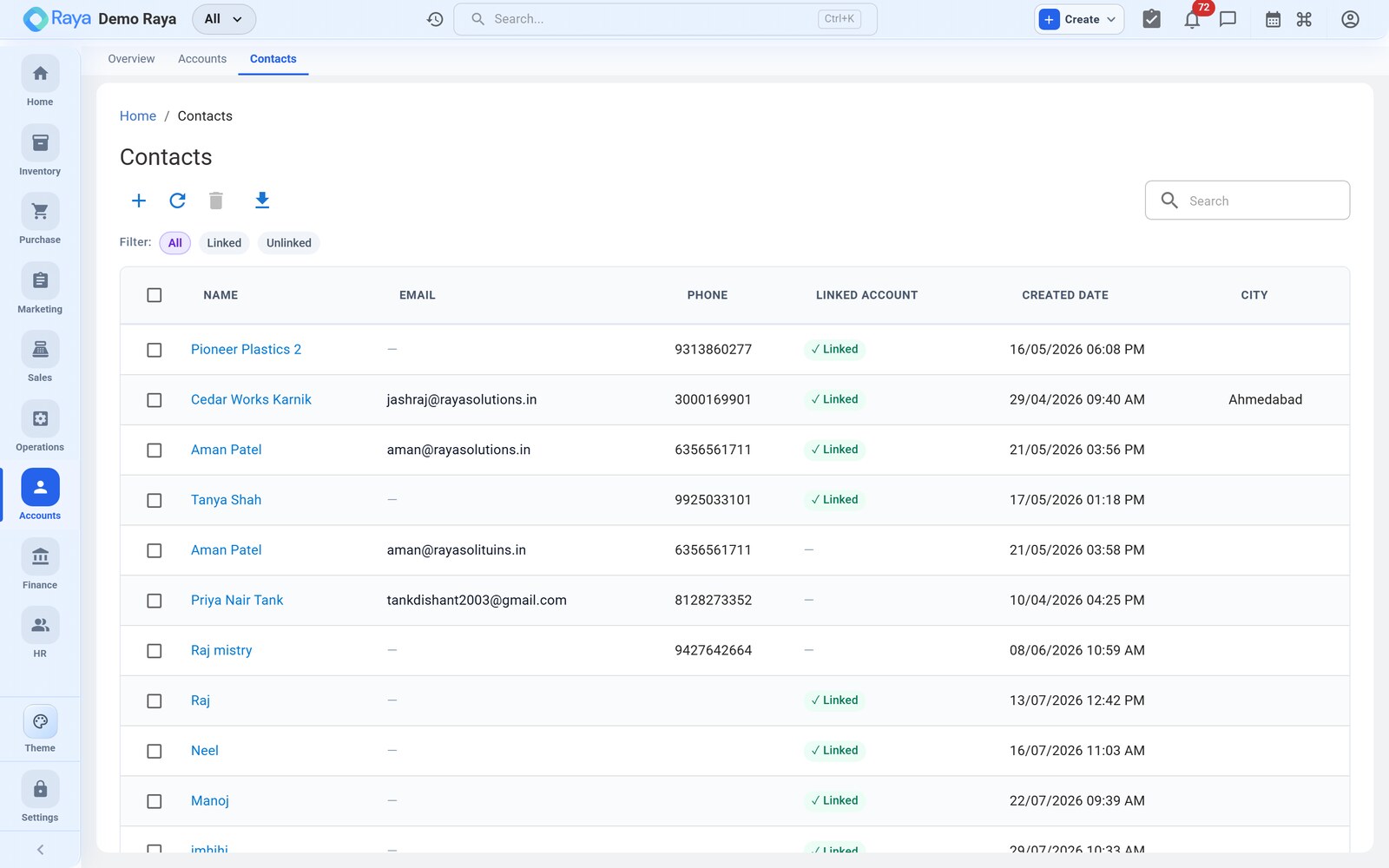
Add a contact
- Go to Accounts → Contacts and click + New Contact — or add one directly from an open account record.
- Choose the account the person works for (a lookup).
- Enter their first and last name and how to reach them.
- Save.
Contact fields
| Field | Notes |
|---|---|
| Account | The company the contact belongs to. |
| First / Last name | The person's name. |
| Designation | Their role, e.g. Purchasing Manager, CFO. |
| Department | Optional. |
| Email / Mobile / Direct phone | Ways to reach them. |
| Decision‑maker? | Yes / No / Influencer, to flag who signs off. |
| Communication preferences | Email, WhatsApp or SMS opt‑ins. |
| Date of birth / anniversary | Optional, for relationship touches. |
| Notes | Free text. |
Primary contact
Mark one contact per account as primary. The primary contact is the default person shown on the account and used when a document needs a single point of contact. To change it, open a different contact and set it as primary — the flag moves across.
:::tip One person, one record Keep a separate contact for each individual rather than combining several people into one entry. That way emails, phone numbers and preferences stay accurate. :::
Linked to your work
Contacts can be linked to leads, quotations and orders, so everyone can see exactly who was spoken to about each deal. Their communication preferences also govern which channels Raya uses when sending notifications.
Related
- Parties — customers & vendors — how contacts fit the party master.
- Managing Accounts — the account each contact belongs to.
- Finance — statements and outstanding by account.
- Sales — attach a contact to orders and quotations.