Navigating the portal
Once you sign in at erp.rayasolutions.in you land on the home dashboard. The layout is the same on every screen.
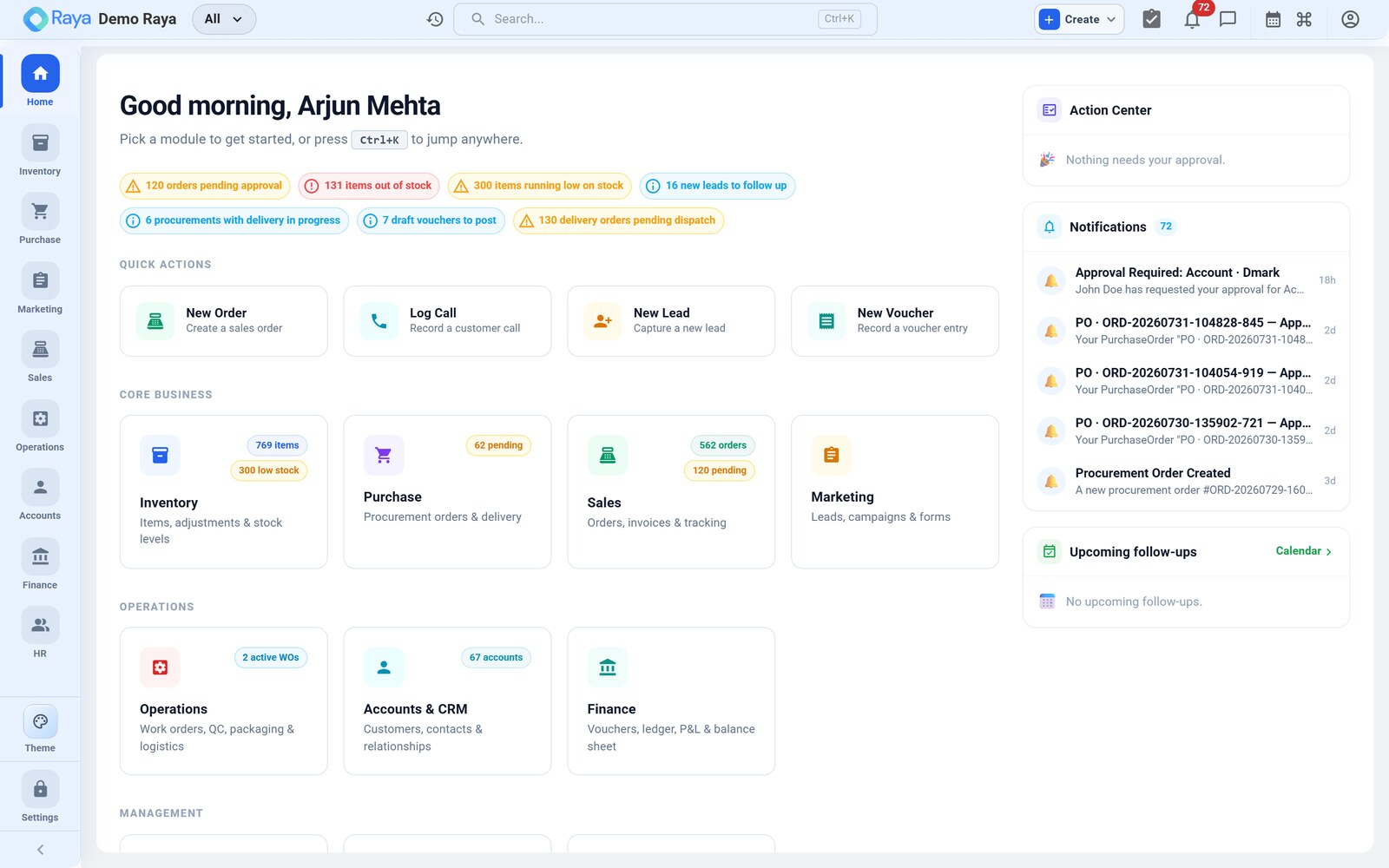
The three layers of navigation
- Module bar (left) — the vertical rail of modules: Home, Inventory, Purchase, Marketing, Sales, Operations, Accounts, Finance, HR and Settings. Click a module to open it. You only see the modules your role and plan allow.
- Sub‑tabs (top) — within a module, a strip of sub‑pages (for example, in Inventory: Overview, Items, BOM, Adjustments, Locations, Stock Transfers…).
- The page — a list, a detail record, or a form.
The dashboard
The home dashboard (the Module Hub) greets you, surfaces action items (orders pending approval, items out of stock, vouchers to post…), gives quick actions (New Order, Log Call, New Lead, New Voucher), and shows a card per module with live counts.
Common patterns
- List pages have a search box, filter bar, KPI chips you can click to filter, and a + button to create a new record.
- Detail pages show a record with a lifecycle stepper (e.g. Draft → Approved → Completed) and tabs for the related information.
- Forms auto‑fill sensible defaults (tax treatment, terms) from the party and your settings — auto until you touch it. Override a field and Raya stops auto‑managing that field.
Search & shortcuts
- Global search — the search box (or Ctrl + K) jumps to products, orders, contacts and accounts from anywhere.
- Create — the + Create button (top right) starts a new record in any module.
Next: pick a module under Modules.